IT350 - Web and
Internet Programming
Lab 8 – CGI with Perl
Introduction
This week will be an introduction to CGI programming. To do this, you will go back to the HTML form you created for your website back in Lab 02/03, and finally put some computation behind it – to really keep track of signups, orders, etc.
You originally created your form in Lab02, though you should copy your work from Lab03 (or later) instead, in order to benefit from your later CSS additions.
Procedure
BIG NOTE: make regular backups of your Perl files! And you definitely want to read Double-click deletes my Perl files! before working on this in your room.
You must create a folder on you Web drive called "Lab08" (without the quotes) and store your work in that directory.
- Read the entire lab so you see the requirements and know what is coming.
- Your first order of business is to write a basic Perl program and get that working to the point where it produces some output visible with a browser. We’ll walk you through this part:
- Right-click on submit and then save it in W:\Lab08\submit.pl (you must change “Save as type” to “All files”. Then change filename from submit.txt to submit.pl)
- Take a look at submit.pl. Get a general feel for what it does. (Note: it has a few bugs that you will correct in a moment).
- Open a Windows command prompt. To do this, click on the “Start” button at the lower left corner of your screen, pick “Run”, then type “cmd” and hit return.
- Type
the following into the window that appears:
w:
cd Lab08
perl –c -w submit.pl
(the –c says to only check the file, don’t run it. the -w says to produce warnings). - This last step should identify a few errors in the program. Fix them. Re-run perl from the command line until you get no more errors. (Hint: all control flow statements like if/while/for require curly braces around their body – this is optional in most other languages).
- Try
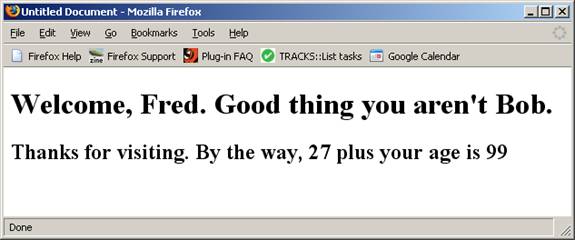
fetching the URL http://www.mXXXXXX.it350.cs.usna.edu/Lab08/submit.pl?name=Fred&age=72
You likely still have a logic bug or two in your program that perl -w won’t catch. Fix the program so that fetching the above link correctly produces the following output (note: if you get nothing and have the right URL, use the next step to debug your Perl):
- Sometimes
a syntactically correct Perl program (e.g. works with –c –w ) will still
crash when you run it with actual parameters, in which case you may not
be able to see everything/anything when you run it via the browser, as in
the step above. At such times, you
want to instead really run it from the command line, but provide
arguments so that it actually execute the right thing. To do that, we omit the question mark
from the URL and just provide the arguments as a quoted string like this:
perl -w submit.pl "name=Fred&age=72"
Try this out now and see what the output looks like. This is a vital debugging tool, and you will want to use this for your final project and possibly for this lab. - Congratulations! You now have a working CGI program. You will now modify it to use the values provided by your form.
- Perl functions: You are required
to write and use at least two Perl functions for this lab.
- You should have a file form.html from Lab03, copied into Lab08. Modify the form (in your Lab08 directory) so that when you click submit, it invokes your new CGI program. Modify your CGI program so that it reads in some value from your form and displays the value in its resultant HTML output.
- Validity check: Modify submit.pl to validate some of the input that your form provides to your CGI program. If an error is detected, your program should state explicitly what the error was, and tell the user to hit the back button and try again (see extra credit for a better approach). You may find it useful to go back to Lab03/form.html, fill in some values, and click submit to see how your data is received by the CGI program we gave you earlier. For the validation you should at a minimum check the following (you can of course do more if you like):
- For your first (or only) text field, ensure it is filled out (not empty)
- For your first (or only) set of checkboxes, ensure at least one checkbox is selected.
- At least one of your checks must involve a pattern match / regular expression – e.g. to verify a phone number, SSN, etc. is valid. See section 25.3 of the online book chapter. You may also find the validation in Figure 25.13 useful. You can modify your form if you wish (to create a parameter that is more amenable to validating with a pattern match).
- Confirmation:
Modify your Perl code so that, if the variables pass all the
validation tests above, the program prints out a user friendly
confirmation. This confirmation should
display the value of all the variables that were provided in a
user-friendly manner.
A page with a raw list of variables and their values is not so friendly -- you should at least have a reasonable title, some welcome text, then a reasonable confirmation of their values. Imagine this was on your website and you wanted to present a reasonable appearance to someone that just submitted your form. Example: “Your reservation for 4 people has been confirmed. The details for this reservation are as follows…” - Fraud check: Next you will modify your script so that one part of the user's input, such as name, credit card number, etc, will be checked against a list of fraudulent values stored in a file on the web server called "fraud-values.txt". This file should be in your top level W: directory – create a sample one that includes at least three different values. Modify your script so that it checks every submission against this file – you pick exactly which field gets checked. If your script finds a “fraud match”, the program should display a nasty message to the user. You may need to change the permissions of fraud-values.txt to enable the web server to read it (see the lecture notes). Hint: Create a function to perform the fraud check.
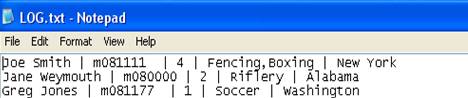
- Logging: Modify submit.pl so that it records activity to a file called LOG.txt. You will want to append to this file (so it contains a history of everything that has happened). To enable this, first create the file (in your top level W: directory), then set its file permissions to enable full access by the web server (see lecture slides). If the values pass your “Validity” test and no fraud is detected, then write all the parameters provided by the user to LOG.txt. The values provided by a single user should all be on a single line – use a vertical bar ( | ) as a separator. Hint: Create a function to write into the log
Here’s an example of how a simple Log file might look after 4 users
submitted forms that passed the Validity test, but one of them triggered a
Fraud:
- Documentation:
ensure you have appropriate comments.
- Important
final step: create five links in your top-level default.htm page under
the heading “Lab08”
- Under the name “Form”, make a link to your Lab08/form.html page
- Under the name “Good submission” make a link to your submit.pl file with all of form variables specified in the URL, such that variables all validate and don’t trigger a fraud alert. Hint: if your form uses the GET method (change this temporarily if necessary), then you can create the needed URL for this by filling out your form correctly and hitting submit.
- Under the name “Fraud submission” make a link like the one above, but such that one of the variables triggers a fraud alert.
- Under the name “LOG.txt” make a link to your log file
- Under the name “fraud-values.txt” make a link to your fraud-values.txt file.
Requirements
Your HTML web page must be constructed using Notepad or a similar text-only editor. The use of programs such as Microsoft Word, Microsoft Frontpage, DreamWeaver, ColdFusion, Mozilla Composer, etc. will be considered an honor offense.
Extra Credit
For a nominal amount of extra credit do some/all of the
following:
(NOTE: saving a backup copy of your working lab is recommended before starting
on this)
- If your program finds a validation problem with an input (such as a missing value or a number that is too big), a much better way to handle this is to have your CGI program regenerate the table with all of the values provided by the user filled in, and values that had a problem highlighted. Of course there should be a submit button so the user can modify the values and resubmit back to the CGI program.
- Write a new CGI program (in Perl) that reads your LOG file and generates a summary report of the submissions. Be sure that your LOG.txt has enough data in it to make this report at least a little interesting.
Deliverables
- Your main web page should be called "form.html" (without the quotes).
- Your Perl file should be called “submit.pl”
- You should have all the pieces working described in “Procedure” above.
- You should have the five links in default.htm that are described above.
- All of your files should be in a folder called "Lab08" (without the quotes) on the W drive. Your instructor will assume that your web pages are viewable at http://www.mXXXXXX.it350.cs.usna.edu/Lab08/form.html where XXXXXX is your alpha number. You may want to check that this URL is viewable and that everything works correctly from a computer where somebody else is logged in. If you've goofed and linked to a file on your X drive, this will help you catch it!
- Turn in the following hardcopy at the beginning of class on the due date, stapled together in the following order (coversheet on top):
- A completed assignment coversheet. Your comments will help us improve the course.
- A printout of the source to your submit.pl file.
Additional Hints/Clarifications (updated as the lab progresses)
- Checkboxes
are interesting because more than one can be checked. If you give the same
name (in HTML) to all your checkboxes, for example “mychecks”, and if you
write something like this in Perl:
@checks = param(“mychecks”);
the param() function will notice the result should be an array (due to the @ symbol), and will return an array with the values of all of the “mychecks” checkboxes that were checked. - If your code is not working, first run perl from the command line (like you did in the beginning of the lab) to ensure there are no syntax errors. Then, add extra print() commands to see what parts of the program are executing and what the values being used are.
- The book sometimes use the die() function to report errors. This is a bad idea for CGI programs because the script will just terminate without sending the error message to the browser. Instead, use regular print() commands to send an error.