Install and
run Apache web server and Perl on your local machine (see deliverables at the
end – this will count as an EXTRA CREDIT quiz)
Step 0: (Install Perl) If not already done, download and install Active Perl (See Lab 9)
Step 1: (Install Apache web server) Windows users: download and install WAMP (Windows-Apache-MySQL-PHP)
a. Go to http://www.wampserver.com/en/
b. Download the WAMP Server version appropriate for your system (64 bits & PHP 5.3 or 32 bits &PHP 5.3) and save it on your C drive
c. Double-click the .exe file you downloaded and follow the instructions on the screen. Leave all fields to the default values.
Linux users: Install Apache web server. Instructions are available here http://www.linuxhomenetworking.com/wiki/index.php/Quick_HOWTO_:_Ch20_:_The_Apache_Web_Server#.UJ0WXYb4KCQ, but your server will not be accessible for the world, so you should not worry about configuring DNS and all the other things. Just install the basic and see where to store your files so your webserver will see them (probably /var/www).
Step 2: (Start Apache web server) Windows users: Click on Start->All Programs -> WampServer -> start WampServer
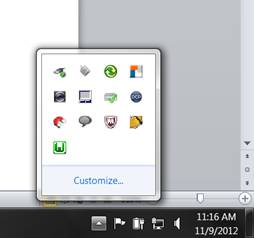
An icon should appear on the bottom right part of your screen (you might need to click on “Show hidden icons” if you already have some icons in the bottom-right part of your screen). The color of that icon should be green, but it might be yellow or red (you’ll fix it later if the icon is not green)


Step 3: (Configure
Apache to run Perl)
a. Find httpd.conf file used to configure Apache
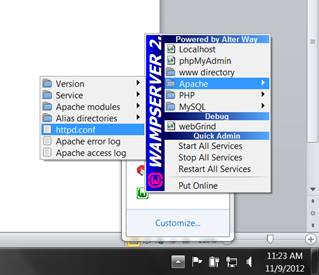
Windows users: Click on the Wampserver icon in the tray -> Apache -> httpd.conf
Linux users: /etc/httpd/conf/httpd.conf in Redhat / Fedora distributions and /etc/apache*/httpd.conf in Debian / Ubuntu distributions
b. Edit httpd.conf file as below:
i.
Inside httpd.conf, look for the line that says “Options
Indexes FollowSymLinks“. Add “Includes ExecCGI” just next to FollowSymLinks,
thus it looks like this:
Options Indexes FollowSymLinks Includes ExecCGI
ii.
Now look for the
line “AddHandler cgi-script
.cgi“, this line is commented out. You need to
enable this by un-comment this line, to do that remove the # character at the
beginning of this line. This will add handler for files with .cgi extension. Since we want to use .pl file extension in
our server add “AddHandler cgi-script
.pl” just below the above line. Now you will be able to execute CGI and Perl
script with .cgi and .pl, extension.
AddHandler cgi-script .cgi
AddHandler cgi-script .pl
iii.
Save httpd.conf
c.
Restart Apache
web server: Windows users: click on the Wampserver
icon -> Restart all services
Linux users:
See the “Managing the Apache Server” section at the link I provided above http://www.linuxhomenetworking.com/wiki/index.php/Quick_HOWTO_:_Ch20_:_The_Apache_Web_Server#Managing_the_Apache_Server
Step 4: (Test your setup)
a. All your files need to be inside the “Document root” directory in order to be visible to the web server. For the default WAMP installation, the Document root is C:\wamp\www. For Linux, the document root is probably /var/www
b. Copy starter.html from the course webpage to your “Document root” folder. (any html file would work, I just use starter.html as an example)
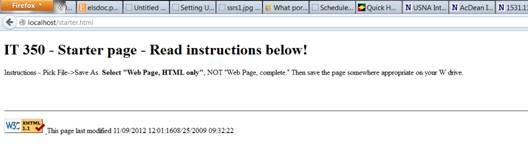
c. Open your browser. In the address bar of your browser, type localhost/starter.html and press enter. If the familiar page shows up, your Apache webserver is running, so go to next step to test whether it works with Perl. If you do not see this page in the browser, go to “Troubleshooting” section
d. Copy the following text and save is as test_perl.pl in your “Document root” folder.
Important Note: the first line of the perl script should have the path to the Perl installation. So make sure that path is correct for your local machine!
#!C:\Perl64\bin\perl.exe
### make sure the previous line has the correct path to Perl on your machine!!!!!
use strict;
use CGI qw( :standard );
use CGI::Carp qw(warningsToBrowser fatalsToBrowser);
use Sys::Hostname;
print header();
print start_html();
print h1("Hello perl");
print h1( hostname() . ":" . localtime() );
print end_html();
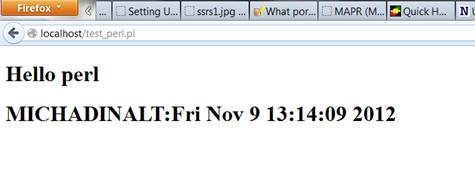
e. In your address bar of your browser, type localhost/test_perl.pl and press enter. You should see “Hello perl” in your browser window. If you do get that, it means your webserver works with Perl!! If not, see the troubleshooting section below.
Troubleshooting
Windows users:
Case 1: You get an exception "Exception in module wampmanager.exe
...."
Solution: Need to install Visual C++ 2010 SP1
Redistributable Package
x86 or x64
VC10 SP1 vcredist_x86.exe 32 bits :
http://www.microsoft.com/
VC10 SP1 vcredist_x64.exe 64 bits :
http://www.microsoft.com/
Case 2:
Sometimes, there is some other program already using port 80. In that case, your webserver cannot use it, so it will not start. You will need to stop that other program, so you can use port 80 for Apache.
a. To see what ports are used on your computer, type the following from command line (click on “Start”, type “cmd” in the search box and press enter):
netstat –ao
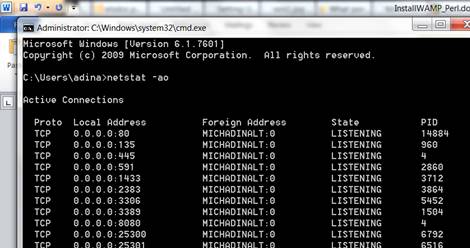
See whether TCP uses 0.0.0.0:80. Note the PID (Process id).
b.
Now start your task manager, to see who is
that process: Right-click the task bar and select Start Task Manager. Navigate
to the Processes tab and, if necessary, click View -> Select Columns… to
ensure “PID (Process Identifier)” is checked. Also check “View processes from
all users”. You can now locate the PID you noted above. The description and
properties should help you determine which application is using the port.
c.
The Task Manager allows you to kill the process, but DON’T DO that
— especially if it’s “NT Kernel & System”.
d.
Go to Control panel -> Administrative tools -> Services and
see if you can find the one identified in the Task Manager. If it was “NT Kernel
& System”, the service is probably “World Wide Web Publishing Service” or
“Web Deployment Agent Service”. You should stop that service and set it to
“manual” restart.
e.
Try netstat –ao
from the command line again to see whether port 80 is still used. If yes, then
the service you stopped is not the correct one, so try to find another likely
candidate (send me an email with the list of services if you need help).
f.
Once port 80 is not used anymore, re-start WAMP and repeat Step 4.
Let me know if it still does not work.
Conclusion: You
now have a webserver and Perl installed on your machine.
You
can copy all your files from your W drive and your T drive to your “Document
root” on your local machine (C:\wamp\www or /var/www).
The
only change you need to make is the path to perl on
the first line of each perl file.
To
test your programs from the browser, use the URL starting with “localhost” (no quotes) instead of http://intranet.cs.usna.edu/~mXXXXXX
or http://intranet.cs.usna.edu/it350-teamX
Deliverables (Due Wednesday,
November 14, before class – counts for EXTRA CREDIT quiz)
Turn in the following hardcopy at the beginning of class on the due date, stapled together in the following order (coversheet on top):
1. A completed assignment coversheet. Your comments will help us improve the course.
2. A
screen-shot of your test_perl.pl as displayed when invoked from the browser
(make sure the URL and entire output is visible in the screen-shot)