IT360 Lab 8: Web Databases –
Implementing a Shopping Cart
DUE: March 26, 2010, BEFORE start of
lab
This lab should get you familiarized with using session variables. We will use the database for the online store that you already created in previous labs. In this lab, you will finally create a web interface so customers can purchase the products.
Preliminaries
a) Connect to the schooner.cs.usna.edu MySQL server by using MySQL Query Browser.
b) Make sure you have the tables for your online store: you can either use you design from Lab2, 3, if that allows products, quantities bought, and sales information to be stored in the database, or execute the script available on the course website, to create the tables that correspond to the following ER diagram: (same tables as in previous lab)

To see the tables created: From File menu, select “New Query Tab”. In the Query Window, write “show tables;” and click the Execute button. You should get a list of the tables in your database. To see the columns of a table, for example to see the columns of the Product table, you can use “describe Product;”.
c) Create a Lab8 directory on your W drive. All the files created for this assignment should be stored in the W:/Lab8 folder. You will be using an object-oriented approach for this lab. Copy your files from Lab 7 to Lab8 directory.
Create a shopping
cart
The online shopping cart is a specific online shopping mechanism: while the potential customer browses the online catalog of products, he/she can choose products to add to his/her cart. At check-out, the products from the cart are purchased. In order to implement the shopping cart functionality, you need to:
- Provide some way for a customer to browse the products in your store. The products are stored in the MySQL database, so your program needs to get the products from the database (you already did that in the previous lab).
- Implement a shopping cart to track the products a customer wants to buy. You should keep track not only of the products the users want to buy, but also the quantities ordered. You have to use session variables for this task.
- Have a checkout script that processes the order. The checkout script needs to ask for payment and delivery information from the customer, record the sale information to the database, display a confirmation message, and empty the cart. The sale information in the database should include the products bought, quantities, price, delivery address, and payment information.
You can implement the shopping cart functionality and the
interface to your system in any way you want, as long as the above requirements
are satisfied and you are using an object-oriented approach. You if want more details, below are detailed
steps on how you could implement the shopping cart for your online store.
Details:
PART 1: Add to cart:
1) From previous lab, you should have a form on the “productPage.php” that displays a list of all products (barcode, name and price). You should have radio buttons or a checkbox for each product. Add a “Add to cart” button to the form. The action should still be “productPage.php”.
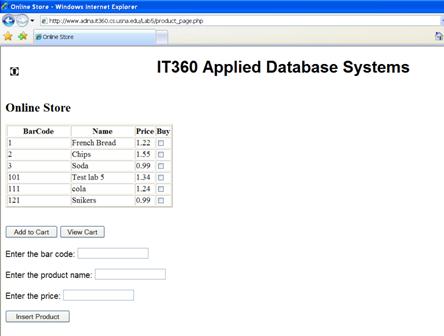
2) The purpose of the form is to allow a customer to select the products it wants to add to the cart.
Create a new shoppingCart.ini.php file that will contain the code for a ShoppingCart class. Create a static function in this class that allows products to be added to the cart:
public static function addToCart($barCode, $quantity)
Hint: This will use a session variable $_SESSION[‘cart’] to store the product and quantity (remember the class exercise).
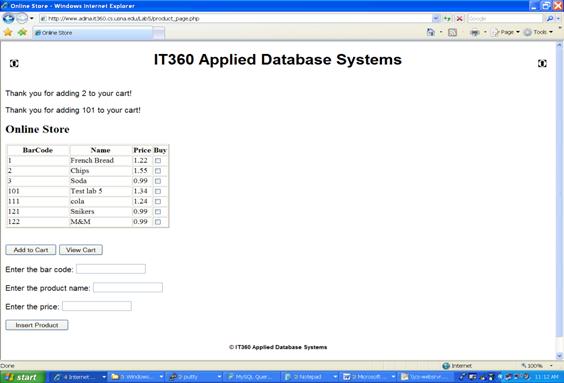
3) Now add code to productPage.php so if the user presses the “Add to Cart” button, you call the addToCart function in ShoppingCart for each of the products selected by the customer. Print some appropriate feedback message to the user and allow the user to add more products to the cart (re-display the products list).
For example, this is how the screen could look like after user added products 2 and 101 to cart.
PART 2: View Cart
4) Add a “View cart” button to the form on productPage.php.
5) Create a listCartProducts() function in the ShoppingCart class that returns a table with all the products in the cart. For each product, the barcode, product name, price and quantity ordered should be displayed. Note that for each product barcode, you probably need to query the database for the name and price corresponding to that product.
6) Add code to productPage.php so if the user clicks on the “View cart” button, the shoppingCartPage.php that you will write next is executed (you can use the PHP method “header” to re-direct the execution to a specific page. For example, header(“Location:shoppingCartPage.php”) will start executing shoppingCartPage.php)
7) Create the shoppingCartPage.php that will display the list of products returned by the listCartProducts() function into a form. The action for the form should be shoppingCartPage. Add a “Checkout” button. Also add a link back to “productPage.php”, in case the customer wants to continue shopping.
Test you program. Add to cart several products, and then see if they are displayed when you click on the “View Cart” button in “productPage.php”
This is the shopping cart after adding some items and user clicked on “View Cart” in productPage.php. Here the user has the option to update the card, but that is for extra credit (see part 4 below)

PART 3: Checkout
8) Add code to shoppingCartPage.php to display another form (it is OK to also leave the list of products there) to ask the user for delivery address and payment information. Add a “Confirm Purchase” button to the form. The action should still be “shoppingCartPage.php”
9) Add to ShoppingCart class in shoppingCart.inc.php file a function that actually processes the purchase:
function buyCartProducts($deliveryAddress, $payment, $db)
The function should write the sale data into the database,
and if everything was OK, terminate the session (destroy the session variables
and the session). If some error occurred, the session should not terminate.
Write code to:
- Save order data into the
- If data was saved in the database, destroy the session. After session is destroyed, the customer should not see any items in the shopping cart, even if it executes the function again.
-return true if everything ok and false otherwise
10) Add code to shoppingCartPage.php file to invoke the buyCartProducts with the posted values if the user clicks the “Confirm Purchase” button. Display appropriate message to confirm the order. If for any reason the data cannot be saved in the database, an error message should be displayed.
Here is a screen shot after entering address, credit card, and confirming the purchase in shoppingCartPage.php:

PART4 (Extra
Credit) Update Cart
11) Modify your listCartProducts method to have the quantity in an input field of type text, so the user can modify the quantity. A good name for the input field is the barcode of the product.
12) Modify shoppingCartPage.php to display the list of products in cart in a form, and add an “Update Cart” button to the form. The action for the form should be “shoppingCartPage.php”
13) Add code to shoppingCartPage.php to update the cart if the customer clicks on “Update Cart” button. For each product from the cart (from the session variable $_SESSSION[‘cart’]), check whether the post variable corresponding to the quantity for that product is greater than 0. If yes, update the quantity in the session variable, if not, delete that product from the session variable (unset ($_SESSION[‘cart’][$barCode]); should work fine, if $barCode is the barcode of the product). Re-display the shoppingCartPage.php
Test that new quantities are displayed in the shopping cart.
Turn in (due
before start of lab on March 26, 2010):
Electronic:
- Upload
all files from your Lab8 folder to the Lab 8 assignment on the
blackboard.
Hard-copies:
- The completed assignment coversheet. Your comments will help us improve the course.
- A print-screen of the web browser after each part is completed.
- A hard copy of product.inc.php, productPage.php, shippingCart.inc.php, shoppingCartPage.php