IT462 Lab 10: Distributed Databases with MS SQL Server
This lab will give you the chance to practice the distributed databases concepts we learned in class.
For the first part of the lab, you will use the SQL Server instance installed on your local computer, and the SQL Server instance on mich300csd20w (we want at least 2 systems in our distributed database). The goal is to be able to run queries against the data stored on mich300csd20w while connected to the local machine, and to execute distributed transactions.
Preliminaries: We need to have some data to play with, so follow these steps to create a database and a few tables on the two SQL Server servers.
To connect to local server: go to Start--> All Programs -->Microsoft SQL Server 2008 R2 -->SQL Server Management Studio. On the connection window, make sure the following options are selected: Server Type: Database Engine, Server Name: (local), Authentication: Windows Authentication. Click on "Connect".
!!Remember that in SQL Server Management Studio query window, if you have multiple SQL statements and you only want to execute some of them, you can highlight the ones you want to execute and click the "Execute" button (or F5).
Create your local database: Click on the + sign to expand the "Databases" in Object Explorer in SQL Server Management Studio and check whether the mXXXXXX database exists, where XXXXXX is your alpha. If it does not exist, click on new query button, type
create database
mXXXXXX;
and click "execute!" If you refresh the "Databases" (right click - refresh), you should see your database.
Create some data in your local database: Copy-paste the code from the createLocal.sql file on the course website into your query window, change "XXXXXX" in the code to your alpha, and execute the code. If you refresh your database (right-click - refresh) you should see your new table(s). You can use SELECT statements to see the rows in the table(s).
Connect to the remote server: same instructions as for local server, but use mich300csd20w as the server name.
Create your remote database: same instructions as for your local database, just that now you are connected to the remote server (mich300csd20w)
Create some data in your remote database: Copy-paste the code from the createRemote.sql file on the course website into your query window, change "XXXXXX" in the code to your alpha, and execute the code. If you refresh your database (right-click - refresh) you should see your new table(s). You can use SELECT statements to see the rows in the table(s).
Part A: Setup linked
server
In SQL Server, it is easy to
setup a distributed system by using "linked servers".
In SQL Server Management
Studio window connected to your local server, in Object Explorer,, go to "Server
objects" - Linked Servers -right-click - New Linked Server.
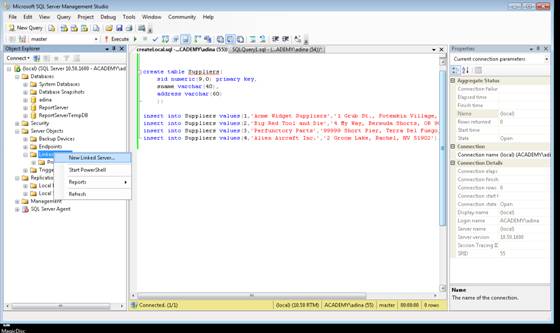
On the "General" page, fill out as Linked Server mich300csd20w, Server type: SQL Server
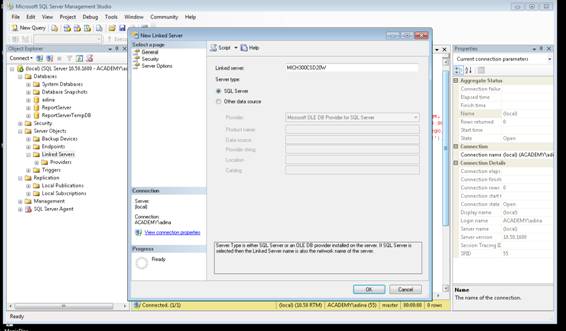
On "Security" page, select "Be made using the login's current security context" (since you can connect to mich300csd20w server using Windows Authentication)
 cv
cv
Click OK.
Take a screenshot of
the screen showing the new linked server in the list of server objects and
paste it into yourlastname_Lab10.doc file.
Part B: Execute
remote queries
Once you have a linked server, you can execute SQL queries against the data on the remote server, as if the data it would be local ... almost: to identify a table (or any other object in a database) you need to use a four parts name: serverName.databaseName.ownerName,objectName. In particular, to access the Parts table on mich300csd20w you would use the name mich300csd20w.mXXXXXX.dbo.Parts
Do the following:
Write and execute an
SQL query to display all data from the Parts table.
Take a screenshot of
the screen showing the query and the result and paste it into
yourlastname_Lab10.doc file.
Write and execute an
SQL query to display the sid, sname, pid, and cost of all parts supplied by
'Acme Widget Suppliers' (this query involves a join between a local table and a
remote table).
Take a screenshot of
the screen showing the query and the result and paste it into
yourlastname_Lab10.doc file.
Part C: Execute
distributed transactions
When using transactions, the effects of the current transaction should not be visible outside the transaction until the transaction terminates (commits). Also, if a transaction aborts (rollback), the effects of the transaction are “undone”. For this exercise you will experiment with this behavior.
o First execute the following statement
SET
XACT_ABORT ON;
o Start a distributed transaction by executing the following statement
begin
distributed transaction;
If you get an error message, for example something like
Msg 8501, Level 16,
State 3, Line 1
MSDTC on server
'MICH300CSDzzz' is unavailable.
it probably means that the Microsoft Distributed Transaction Coordinator (MSDTC) is not setup correctly. Follow the instructions at http://technet.microsoft.com/en-us/library/cc753620%28WS.10%29.aspx to setup the local DTC correctly (add the recommended exception to the firewall when/if prompted).
o Insert one part in the remote Part table, by executing an insert statement appropriate for your table.
o Check that the item was inserted by executing a Select statement, for example
Take a screenshot of
your screen showing the queries and the result and paste it into
yourlastname_Lab10.doc file.
o Open now a new SQL Server Management Studio connection by starting SQL Server Management Studio and connecting to your database on mich300csd20w.
o Check the content of the Parts table by executing a Select statement, for example
SELECT * FROM Parts
1)
Do you see
the product that you just inserted in the other session? (write the answer in yourlastname_Lab10.doc)
2)
Why? (write
the answer in yourlastname_Lab10.doc)
o Go back to your first SQL Server session (connected to local) and commit the distributed transaction by executing the statement:
commit;
o Go now to the second SQL Server session (connected to mich300csd20w) and check the content of the Parts table executing a Select statement, for example
SELECT * FROM Parts
3)
Do you see
the product that you inserted in the other session? (write the answer in yourlastname_Lab10.doc)
4)
Why? (write
the answer in yourlastname_Lab10.doc)
Part D: Cost of
distributed queries
Consider a distributed DBMS with 2 tables with the following schemas, with primary keys underlined:
Employees(eid, did, salary)
Departments(did, mgrid, budget)
The mgrid column in Departments is the eid of the manager. Each row in each table has 20 bytes. Emplyees table has 100000 pages, the Departments table has 5000 pages, and each page has 4000 bytes. The cost of shipping one page is ts.
In the distributed DBMS, consider that the Employees table is stored at Chicago, and the Departments table is stored at Indianapolis. Consider the query:
SELECT *
FROM Employees E, Departments D
WHERE E.eid = D.mgrid
This query is issued at the Los Angeles location, and you
are told that only 1 percent of all employees are managers. What is the
shipping cost for answering the query using each of the following plans: Write all your work and answers in
yourlastname_Lab10.doc file:
1) Ship Departments to
Chicago, compute the query and Chicago, and ship the result to Los Angeles.
Write your computation and answer to yourlastname_Lab10.doc file.
2) Ship Employees to
Indianapolis, compute the query at Indianapolis, and ship the result to Los
Angeles. Write your computation and answer to yourlastname_Lab10.doc file
3) Ship both tables to
Los Angeles and compute the query at Los Angeles. Write your computation and
answer to yourlastname_Lab10.doc file.
4) Which plan has the
lowest cost? Write your answer to
yourlastname_Lab10.doc file
Turn in (Both
electronic and paper copies are required):
Electronic:
- Upload
the file yourlastname_Lab10.doc with answers to Parts A, B,C, D to
Blackboard.
Hard-copies:
- The completed assignment coversheet. Your comments will help us improve the course.
- Hard copy of yourlastname_Lab10.doc