The key to succesfully finishing labs is reading the instructions carefully.
Make a good habit of reading every word -- don't skip any text.
Part 1: The Computing Environment in Your Laptop
The system setup page is your starting point for help on how to use the computing environment and get things done for this class.Part 2: Editor
Choose your editor
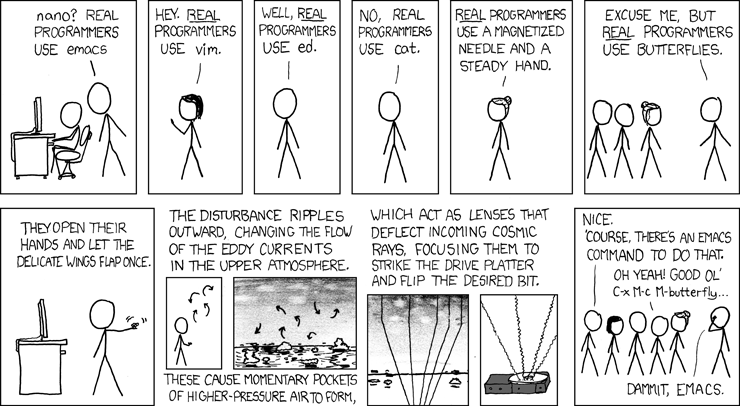
We will be using the Unix environment to create, compile and execute C++ programs. First, you must choose a text editor to create your first C++ program. Sounds easy, right? Wrong! Your choice of text editor will mark you for life. Choose wisely!- VS Code - a new pretty-to-look-at editor
- vi/vim/gvim - lightweight and powerful text editor.
- emacs - feature-rich text editor.
Part 3: Your First Program
- Open a Linux (Ubuntu) terminal window.
-
You should see a prompt like
vm@vm:~$
This is actually telling you some useful information! In this example:
vmbefore @ is the username.vmafter @ is the name of the computer- The
~is the current directory. A tilde~indicates your home directory, which is the base of where all your personal files will be stored in Linux.
-
Type
to see the contents of your current directory. You should see something likelsDesktop Downloads bin ic210 -
Of course the
ic210directory is the place to be! To move into that directory typecd ic210Notice that your prompt changes to indicate you are now in a different directory!
It’s a good idea to always start and end any period of work that you do, by syncing up with git. More detail on this below, but for now you just need to run:
210sync- Now we want to make a new directory to hold your files for lab01 using
"mkdir" command, and finally change to this new directory:
mkdir lab01
cd lab01
- Open your preferred text editor.
- If you use VS Code, in your terminal:
code main.cpp&
- If you use vi, in your terminal:
gvim main.cpp&
(Try and learn a bit about Vim: Vim cheatsheet, the interactive Vim tutorial) - If you use emacs,
emacs main.cpp &
(Try and learn a bit about emacs: Emacs Essentials, a bigger list of commands, a much bigger list of commands)
- If you use VS Code, in your terminal:
-
Now use your text editor to copy in the following source code into the main.cpp file:
When finished, save your file.#include <iostream> int main() { std::cout << "Hello World!" << std::endl; return 0; } - Compile
If you want the programs you write to actually do something then you must compile them (turn source code into machine language). Converting high-level C++ source code into machine language is very complex, but compiler vendors solve this problem for you.
To compile your program,
- Make sure that you have a terminal open from before.
- In the terminal, the current directory is where you saved main.cpp.
- Once you are there, compile by typing into the terminal
g++ main.cpp -o m012345
(Of course, use your alpha instead of m012345.)
ls
If you omit the "-o m012345", which we will often do, then a file with default name of "a.out" is created. Try:
g++ main.cpp
ls
The new files m012345 and a.out are the "executable file" for your program.If you do see any error messages from
g++, then get assistance from the instructor. Tips for deciphering error messages are given below at the end of this tutorial. - Run!
Once you successfully compiled your program (no errors), then you are ready to execute your program. In your current working directory, you will see a new file called
m012345(or whatever you have named it). That is your program. To execute a file, type the file's name preceded by a "dot slash" (literally, "./") and hit the enter key.Note: the "dot slash" is telling the computer to look for the program (m012345) in the current directory (indicated by the "dot").
- Program Output:
Your program will output to the same terminal from where it was executed, as seen above.
Now, let's view the executable file you just executed. Type
to list details of the contents of your current working directory.ls -l- There is a file named main.cpp – it is your source code file. Note the size of the file (95 byes in our example).
- The file called m012345 is your program's executable file, which is combined with all of the other necessary machine code to run your program. Note the size (7782 bytes in our example)!! The increase in size is due to the code that was “included” in your program.

Part 4: Let's do it all over again!
You just accomplished quite a bit; you typed in a C++ program, compiled it and executed it. It is important that you understand all the steps involved, and that you are comfortable using a text editor and the terminal.Repeat Part 3 of this lab all over again, with these changes:
- First, close all open windows (including the editor and terminal).
- Open a terminal and "cd" to the correct directory for lab01.
- Instead of entering the "Hello World" program, enter in this simple addition
program (name your source file
add.cppinstead ofmain.cpp):add.cpp sample run // (Your name and alpha) // This program adds two numbers #include <iostream> int main() { int number1, number2, sum; number1 = 12; number2 = 13; sum = number1 + number2; std::cout << "The sum of these two integers is " << sum << std::endl; return 0; }~/$ ./add The sum of these two integers is 25 -
Compile your program giving the executable the name
add.- Now, what do you need to change when you compile your program?
- See Part 5 below, if you have errors in compilation.
- Run your program, making sure it prints out the right answer! Fix it if it doesn't!
Part 5: Fixing errors in compilation
How to read the error message
When you make certain kinds of common mistakes (syntax errors), the compiler won't be able to understand your program and will issue error statements in the terminal window.- Each error message includes a number, which represents the line number of the error. Go to that line number to see where the problem is.
- Every syntax error must be corrected before a program will compile. Sometimes it is clear what's wrong, and other times you may have a hard time figuring out how to correct a syntax error.
Tips
You will improve as you see enough errors to associate the messages with the syntax error. Here are a few simple tips:- Save program files before compiling
- If an error is flagged on a line that looks perfectly fine, sometimes it is the preceding line that is messed up. Check it too!
- Check for missing or extra ; and } characters
- Compile your program in small chunks. Don't wait to compile your
code until you complete the entire program.
- When you write some chunk, try compile it and fix errors for the chunk.
- If you fix all the errors fot chunk, then add some more chunks.
- Messages that say "Cannot convert from ... to ..." usually mean you are trying to assign the wrong type to a variable.
- Check your typos. A common mistake is to name a variable one thing but spell it wrong or use some other name later.
- Sometimes, one simple problem can cause the compiler to
find tons of errors (like forgetting to include using
namespace std;. Correcting that one line can make all of
those errors go away!
If you compile and see an unusually large number of errors don't panic. Often a simple change will correct them.
- If you can't figure out what's wrong - ASK!!!
Errors on purpose: Don't skip this part!
Experience and practice help a lot here. So for each of the below, purposefully make the syntax error in your current program and try to compile to see what the error message is. Correct the error before introducing the next error into your program (e.g., only add ONE ERROR at a time). Go slowly and pay attention, this will save you time later!- remove a semi-colon.
- change a "<<" to a ">>".
- change the variable number1 to Number1.
- remove the ending }.
- remove the "#include <iostream>" line.
- change the "std" from "std::cout"
Part 6: Write code to submit
- In your terminal, cd to ~/ic210/lab01.
- Create lab01.cpp as follows:
#include <iostream> int main() { std::cout << "Hello World!" << std::endl; std::cout << "This is a 1!" << std::endl; return 0; } -
Modify the program lab01.cpp so that it's output matches what's shown
exactly!
required output Hello World! Hello Solar System! Hello Galaxy! Hello Universe! Hello ... ? This is a 1! This is a 2! This is a 3! This is a 4! This is a 5!
Use editor commands: Your focus is on using the editor to make these changes as efficiently as possible! In other words, of course you can do it, I want you to concentrate on doing it smart!It's almost a puzzle to use as few keystrokes as possible. In particular, what editor commands would do the following?
- Copy a line
- Paste
- Delete (or replace) a word
Submit this lab01.cpp to the submission system
-
Cd to the directory that contains the lab01.cpp file.
cd ~/ic210/lab01
-
Submit your program by giving the following command:
~/bin/submit -c=IC210 -p=lab01 lab01.cpp
-
Important:
Using your web browser, check the submission
server and see if your work passes the test case.
If you did not get the output 100% correct, the page should give you an indication of what's wrong with your output.
Keep fixing your program and resubmitting until it works perfectly.