Lab 1: Your First Programs
Today's lab involves writing several short programs. We don't know much Python yet, so we will play around with short practice examples. Future labs will focus more on creating a single bigger program.
Due Sunday Aug 27 at 2359
Part 1: The Computing Environment and Conda
Our future programs will use a lot of libraries. We will install many of these, and sometimes when you install lots of libraries, they conflict with each other. One might be a recent version, and another too old, so they don't play nicely. We don't want to install everything on our raw account because if something breaks, your entire account is broken. We instead create an environment that can be removed and recreated.
mamba is a program that lets us create environments to install libraries. When you then run Python, it looks only in one environment for your libraries. First check that it is installed:
$ which mamba
/home/mids/m2xxxxx/mambaforge/bin/mamba
If you didn't see the above, you need to install it, click here for instructions
Now you can type the following command (in red) to see any current mamba environments:
$ mamba env list
# conda environments:
#
base                  *  /home/mids/m2xxxxx/mambaforge
sd211                    /home/mids/m2xxxxx/mambaforge/envs/sd211
If you don't see the sd211 environment listed, go back to the
Mamba install instructions and make sure you do the last step.
Now we're ready to go. Follow these steps to tell VS Code about Mamba:
- Open VSCode
- Make sure the Python extension is installed.
(Click the four squares button on the left, search for Python. Hit Install if it isn't already.)
- Open your sd211 folder.
(Go to File - Open Folder. If you don't see a folder called sd211 in your home directory,
create it by using the little folder-plus icon. Then open your sd211 folder in VS Code.)
- Create a new Python program in this folder called
hello.py
(Click the File-Plus icon on the left side under "Explorer", then type the name of your new file.)
- Now look on the bottom-right of the VS code window. You should see the language
selection which probably says
{} Python Click on that.
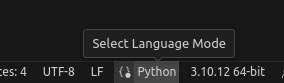
- This lets you choose your Python interpreter version. You should see the SD211 mambaforge option in
the list. Pick it!

- Now you should see it says something like
Python 3.11.4 ('sd211':conda) on the
bottom-right of the status bar. You're all set.
Part 2: Advanced "Hello World"
The traditional first step when learning any programming language is to write a Hello World! program. There is even a webpage with every programming language's "Hello World" that you can think of.
You've already written your first program for HW, but let's create a different version.
Create a new file in VSCode called hello.py and put one line in it:
print("Hello, World!")
Before we move on, don't forget to document your code. It needs some comments that explain what the program does. You use the pound (#) symbol to start any line with free-form text that Python will skip over. These comments are there to describe your code to someone (and yourself) what the program does.
#
# My first program that prints Hello World!
# Your Name
#

print("Hello, World!")
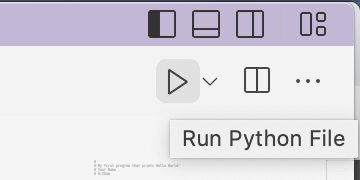 Run it! Find the triangle on the top right of your VS Code window...see picture to the right here. Clicky!
A terminal will open in VS Code, and you'll see it run, something like this:
$ python3 hello.py
Hello, World!
Let's personalize your program. Create a variable at the top of your program that will store your program's friendly name:
name = "Barleyfoot"
Then have your program introduce itself:
print("My name is " + name)
As you recall, we use the + operator to concatenate two strings together. When you use a variable, the program looks up the value stored there, and copies that value into your concatenated string.
Using the above as an example for printing and inputting, now extend the program to produce the following interaction. Note that red text is user input. Your program should produce this output exactly as shown. This means using print() and concatenation as appropriate:
Hello, World!
Greetings kind citizens.
A good day to you!
My name is Barleyfoot.
What is your name? Nate
Hello there, Nate, are you enjoying the lab? sure ok
sure ok, you say? Well isn't that nice.
What color are your socks? red
The color red is my favorite too!
Required: make sure your program file is named hello.py
Part 3: Not Hello World
Create a new file named interact.py in VSCode. Now create a new interaction that is different from the prior part, and talks to the user about a favorite topic of yours. Ask the user for 3 inputs, and incorporate them into your conversation. Ideally, your program should tell some interesting story or facts. For instance, here is mine:
Hi what's your name? Amy
Hello, Amy, nice to meet you.
Did you know that a cucumber is a fruit? No
No? It's crazy.
What's your favorite vegetable? squash
I like squash too, but that's probably also a fruit.
It's true, even peppers and string beans are fruit. I'm not sure vegetables even exist.
Required:
- You must receive 3 inputs from the user.
- You must print out their inputs in your later print statements. I underlined those above to illustrate. You won't underline yours, as that's not an option in Python's print()
- You must have at least 3 prints separate from your inputs.
Part 4: Exchange
Find a classmate. Email your interact.py programs to each other. Run and try out your classmate's program.
Required: copy the full output of running their program into a file named classmate.txt
Part 5: Library Usage - Change how you Output
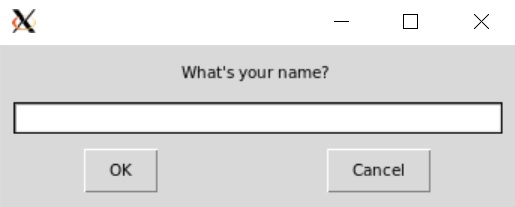
Now we'll illustrate your first use of a Python library that somebody out in the world created.
Copy your interact.py program to another file named interactgui.py
Let's change your program so the print and input statements instead pop up graphical boxes from a Graphical User Interface (GUI). People like GUIs because they're more friendly to use. There is GUI library called easygui with a msgbox() function. Change your first print("Hi my friend!") to instead be msgbox("Hi my friend!") ... or whatever your first print says. Try running it. Did you see an error like this?
Traceback (most recent call last):
  File "hellox.py", line 23, in
    msgbox("Easygui got " + msg)
NameError: name 'msgbox' is not defined
The problem is that your Python doesn't know about EasyGUI nor msgbox(). You've been using print("Hello") which is a standard Python function that Python makes available from the start, so when you write code referencing it, Python knows what you're talking about. We renamed it to instead be msgbox("Hello"), but you might as well have just typed in woopdeedoo("Hello") as far as Python is concerned. Your function calls need to be either from core Python, or you must tell Python where to find it.
msgbox() is a function in the EasyGUI library. We are in our sd211 mamba environment, right?
(Check the bottom-right of the status bar.)
One of the packages we installed with Mamba is easygui, so it should be available
in Python.
Now you just need to tell Python that you want to use the easygui library in this program. You do that with the from/import command:
# Put this at the top of your code
from easygui import *
This tells Python to find all functions (the asterisk *) inside the library called 'easygui'. That one line makes everything available to you. Now try running your program again and you should see a GUI window pop up.
Assignment: use msgbox() for your print statements, and enterbox() for your inputs. Your program should then be fully GUI-ified. Read the easygui documentation if you run into trouble or want more functions!
(going further, if time) Part 6: Height and BMI
Hello World is pretty basic. Let's make one more program from scratch. This one will do basic height/weight calculations. Create a new empty file called bmi.py
Below is the expected input/output (without GUIs, your choice to use it or not), so your task is to write a program that does the same. Black text is your program's output, and red is the user's input.
How many feet tall are you? 6
How many inches? 0
You are 2 inches off from the average man.
You are 8 inches off from the average woman.
How much do you weigh (in lbs)? 165
Your BMI is 22.375578703703702
And another run:
How many feet tall are you? 5
How many inches? 6
You are -4 inches off from the average man.
You are 2 inches off from the average woman.
How much do you weigh (in lbs)? 135
Your BMI is 21.787190082644628
You'll need these details to program it:
- Average US man's height is 5'10''
- Average US woman's height is 5'4''
- BMI = 703 * weight / inches^2
What to turn in
Submit your files to our submit system from a terminal:
~/bin/submit -c=SD211 -p=lab01 hello.py interact.py interactgui.py classmate.txt
And if you did the last (optional) part on BMI calculation, you would run
~/bin/submit -c=SD211 -p=lab01 hello.py interact.py interactgui.py classmate.txt bmi.py
That should work! If it didn't...
If the above resulted in submit: command not found, then your account doesn't have the submit program. No problem! Open a web browser, visit the submit website, click the person icon on the top left and login. Then click your name on the top left, and select Retrieve Personalized Script. Click the big button on the next page, Download Personalized Submission Script. Finally, move that file to a new bin folder and set the file to an executable program with these two commands:
mkdir ~/bin
mv ~/Downloads/submit ~/bin/
chmod 700 ~/bin/submit
Alternatively, if you are on the machine with a web browser, you can upload through the website. Login to the submit system and click your name. Select "Upload Submission" and upload all your files all at once (don't send 4 separate submissions):
hello.py interact.py interactgui.py bmi.py classmate.txt