Our C++ program (source code) will be entered as a file. This is the actual file that you will type using the editor. Other files will be used along with your source code to enable the execution of your program. For example, another type of file that may make up your project is a "header" file, or "include" file. An "include" file allows you to use additional source code that you or others have written. They comprise a library of helpful tools -- for example, they can provide input/output capabilities, standard math functions (like cosine, or finding the square-root), among others. In fact, they are often called standard library files. You reference a "header" file by "including" it into your source file. You will include a library file today that provides basic input and output services for your program (details to follow).
The complete collection of files needed to run our program is termed a project. So, a project is the collection of files that make up the program (or application) that you are developing.
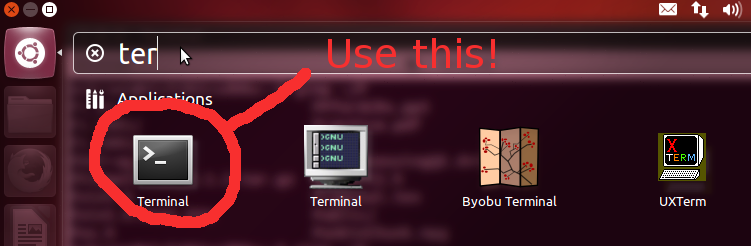
Terminal application (to do
so, look at the "Launch Bar" on the left side of your screen). Click on the top
bottom (text saying "Dash Home" appears when you hover over this), wait for a
box to appear, and type "Terminal". Or, if the Terminal icon already appears
lower down in the Launch Bar, just click on that).
mkdir si204chmod g-rwx si204 chmod o-rwx si204 cd si204 mkdir lab01 cd lab01
pwd /home/mXXXXXX/si204/lab01
Open your preferred text editor. For example, if you use vi, in your terminal window type
emacs main.cpp &or if you use vim,
gvim main.cpp &
| Explore emacs | Explore vim |
| Try and learn a bit about emacs using the below references: | Try and learn a bit about Vim using the below references: |
Now use your text editor to copy in the following source code into the main.cpp file:
#include <iostream>
using namespace std;

int main() {
  cout << "Hello World!" << endl;
  return 0;
}
If you want the programs you write to actually do something then you must compile them (turn source code into machine language). Converting high-level C++ source code into machine language is very complex, but compiler vendors solve this problem for you. To compile your program, first make sure that you have a terminal open from before, whose current directory is where you saved main.cpp. Once you are there, compile by typing into the terminal
g++ main.cpp -o m012345
If your program compiled successfully, you should not see
any output from g++ (you will just see the prompt, waiting for the
next command) and there should be a new file in your working directory called
m012345. (If you omit the "-o m012345", which we will often do, then a file
with default name of "a.out" is created.) The new file is the "executable file"
for your program.
If you do see any text output from g++, then get
assistance from the instructor. If there are errors, they will be
listed in the output. Tips for deciphering error messages are given
at the end of this tutorial.
Note: technically, the single command you issued actually "compiled" and "linked" your program. We'll talk much later about this, but in short "linking" (amongst other things) takes your code and combines it with other code provided elsewhere to do standard things like input and output (this is referenced by the #include <iostream> line in your code). Often, we'll informally call this whole process "compiling."
Once you successfully compiled and linked your program
(no errors), then you are ready to execute your program. In your current
working directory, you will see a new file called m012345 (or
whatever you have named it). That is your program. To execute a file, type the
file's name preceded by a "dot slash" (literally, "./") and hit the enter key.

Your program will output to the same terminal from where it was executed, as seen above.
Now, let's view the executable file you just executed. Type
ls -l
Repeat Part 3 of this lab all over again, with these changes:
add.cpp instead of
main.cpp. Now, what do you need to change when you compile your
program?| add.cpp | sample run |
|
~/$ ./add
The sum of these two integers is 25
|
Compile your program giving the executable the
name add, and run it, making sure it prints out the
right answer! Fix it if it doesn't!
Show your instructor when you finish this part.
Experience and practice help a lot here. So for each of the below, purposefully make the syntax error in your current program and try to compile to see what the error message is. Correct the error before introducing the next error into your program (e.g., only add ONE ERROR at a time). Go slowly and pay attention, this will save you time later!
ls" frequently to
see what effect the commands are having. Once you're comfortable with
either vim or emacs, try to modify the program lab01.cpp below (keep this
filename!) so that it's output matches what's shown exactly!| lab01.cpp | required output |
|
Hello World! Hello Solar System! Hello Galaxy! Hello Universe! Hello ... ? This is a 1! This is a 2! This is a 3! This is a 4! This is a 5! |
Show your instructor when you finish this part.
bin in your home
directory. This can be done as: mkdir ~/bin
chmod 700 ~/bin/submit~/bin/submit -c=SI204 -p=Lab01 lab01.cppThe resulting output should include "The submission may be reviewed online at" followed by a URL. Copy that URL and paste it into your browser. The resulting page should tell you how you did. If you did not get the output 100% correct, the page should give you an indication of what's wrong with your output. Keep fixing your program and resubmitting until it works perfectly.
You should now be comfortable with being able to generate source code, compile it, execute the program, and correct basic syntax errors -- all in Linux. Let's clean up so you can get to your next class.