SI204 Drawing with Excel
You can use Excel to plot points for you. The folowing will show
you how to take the output of a simple program and cut-and-paste
it into Excel, and then plot the points defined in the output
using Excel's charting features. The general format is to list
points, one per line, with the x-coordinate followed by a tab
followed by the y-coordinate. Points on consecutive lines are
connected by segments. If a blank line comes between consecutive
points, they will not be connected by a segment.
The following
program produces output which we can cut and
paste into Excel to produce a plot of a
triangle and it's "bounding box":
#include <iostream>
using namespace std;

int main()
{
  // triangle coordinates
  cout << 5.5 << '\t' << 2.7 << endl
       << 3.2 << '\t' << 6.5 << endl
       << 4.0 << '\t' << 8.1 << endl
       << 5.5 << '\t' << 2.7 << endl;

  // separate triangle from box
  cout << endl;

  // box coordinates
  cout << 3.2 << '\t' << 2.7 << endl
       << 5.5 << '\t' << 2.7 << endl
       << 5.5 << '\t' << 8.1 << endl
       << 3.2 << '\t' << 8.1 << endl
       << 3.2 << '\t' << 2.7 << endl;

  return 0;
}
If you compile and run this program, it'll print out:
5.5     2.7
3.2     6.5
4       8.1
5.5     2.7

3.2     2.7
5.5     2.7
5.5     8.1
3.2     8.1
3.2 2.7 |
Highlight this text in the window, right click and choose
Edit and Copy to copy the text. We'll want to
use this information in Excel.
Start Excel and open a new workbook. We'll paste our data into
Excel and use it to plot the figures outlined by the above
points.
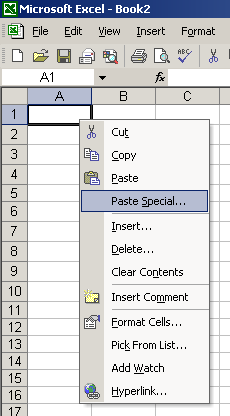
- To paste, right-click on the top left cell and choose
Paste Special. Choose to paste this in as text.
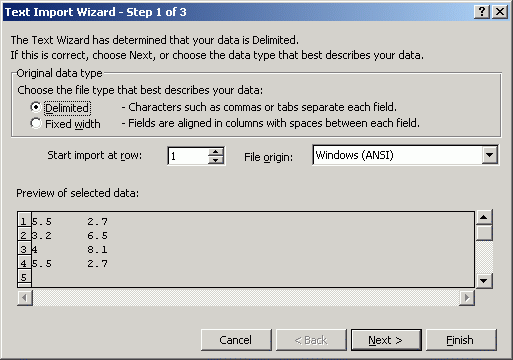
- Because we got one column of data instead of two, click on
the little clipboard icon that's hanging out below the text
you just pasted in and choose the Use Text Import
Wizard... option.

-
Click on Finish
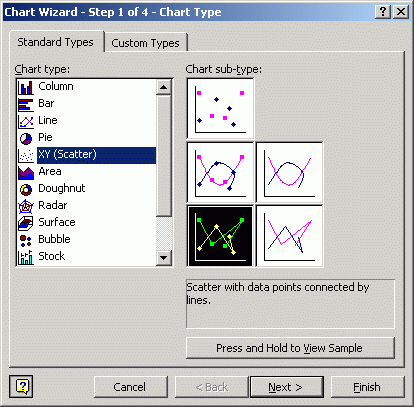
- Make sure all your data is highlighted, and click on the
Chart icon on the Excel toolbar. Choose XY (Scatter)
as the Chart type, and click
on the Chart sub-type that connects points with lines. Click Finish.
- When all's said and done, you should get a picture like this:

Christopher W Brown
Last modified: Wed Aug 18 10:35:47 EDT 2004