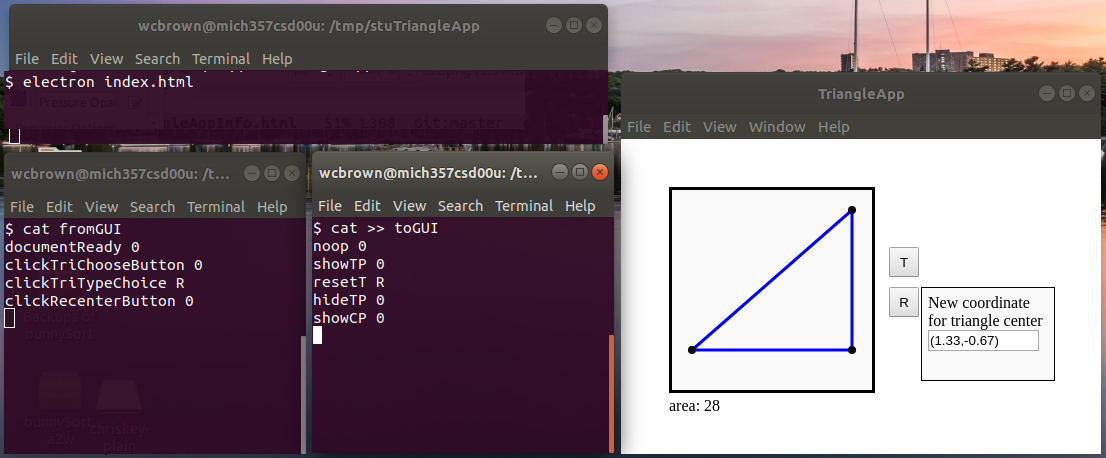
The Triangle App (see demo to the right) shows a triangle (the canvas shows
-5..5 x -5..5) and reports its area. The user can do three
basic things:
Choose amongst triangle types Equilateral, Right and Obtuse.
Move the triangle's center, either by clicking on a point
within the canvas, or by typing a coordinate.
Change the triangle's shape by clicking and dragging vertices.
Each user event (e.g. clicking on the T button)
results in an event-message (e.g. clickTriChooseButton). Your
program should read these messages and respond with one or more
action-message(s) (e.g. showTP) that causes
something to happen in the GUI (e.g. showing the triangle choice
pane).
The following will describe installation and
setup, communicating with the GUI, and Triangle
App Behavior.
installation and setup
The Triangle App is based on "Electron" and "Node.js", which is
actually the same platform as the Atom Editor, if you use that
instead of the one true editor, Emacs. In any event, you'll
need to install "nodejs" and "npm" on your VMs. Do this with
the following commands:
With this done, you need to copy the project onto one of your
VMs. To do this, you must be on the yard. Cd to whatever
directory you want to work in, and give the following commands
to download, unpack and initialize the project:
$ sftp midn.cs.usna.edu:/home/scs/wcbrown/courses/F18SI340/proj/04/stuTriangleApp.tar.gz
$ tar xfz stuTriangleApp.tar.gz
$ cd stuTriangleApp
$ ./init.sh
At this point you should be good. You can test this by running
the command:
electron index.html
... from within the stuTriangleApp directory. The GUI window
should pop up, though it will be unresponsive.
Triangle App event-messages and action-messages
The way Triangle App is set up, you will receive from the GUI event-messages
related to things the user does, and you will send to the GUI
action-messages that the GUI should carryout in order to change
what's on the screen. Each message has an associated piece of
data. Most of the time the data isn't important, but sometimes
it is, for example when the user clicks on the canvas, the
associated data is the coordinates of the click. You
essentially just need to send data like that straight back to
the GUI with your action-message.
event-messages you might read from GUI
action-messages you might send to GUI
click 0 : within the window
clickOnCanvas <coord> : click within the drawing canvas (with where click occured)
clickRecenterButton 0 : click on the recenter "R" button
clickRecenterPane 0 : click within the recenter pane
clickRecenterTextBox 0 : click within the text box in the recenter pane
clickTriChooseButton 0 : click on the triangle choice "T" button
clickTriTypeChoice <type> : type is one of E, R or O
documentReady 0 : this occurs when the document is first loaded
mouseDownVertex <name>:<coord> : mouse down on one of
the vertices. <name> is one of vertexA,
vertexB, vertexC, <coord> is mouse position
mouseLeaveCanvas 0 : occurs when mouse exits the canvas area
mouseMove <coord> : each mouse movement
generates this, <coord> is new position
mouseUpCanvas <coord> : a mouse up within the
canvas, <coord> is where the mouse is
recenterTextChange <text> : user hit enter in
text box, <text> is what's there
recenterTextFail 0 : a checkCT action resulted in
failure, i.e. not a valid point
recenterTextSucc <coord> : a checkCT action
resulted in success, <coord> is the result
noop <data> : does nothing
showTP <data> : shows the "triangle pane", i.e. the box with triangle choices
hideTP <data> : hides the triangle pane
resetT <data> : resets the triangle to one of the types <data> = E, R or O
showCP <data> : shows the "centering pane", i.e. the box with center coords
hideCP <data> : hides the "centering pane"
checkCT <data> : checks the centering pane text box
errorCT <data> : sets centering pane text box color to red (error!) and grabs focus
moveC <data> : moves triangle to new center, <data> = coordinate of new center
selectV <data> : sets vertex as selected,
<data> = <name>:<coord> where
<name> is one of vertexA, vertexB and vertexC, and
<coord> is an ordered pair
moveV <data> : moves the selected vertex, <data> is mouse coord for the movement
resetV <data> : resets position of selected vertex back to where it was when selected
communicating with the GUI
The ./init.sh script should've created two named
pipes: fromGUI and toGUI. When the
GUI is launched with electron index.html, it will start
writing messages to fromGUI as the user interacts
with it, and it will start reading and executing action messages
that get sent to it from toGUI.
The best way to see this happening is to open three separate
terminal windows, and in the first cat fromGUI, in the second do
cat >> toGUI, which means anything you type
gets sent to toGUI, and in the third actually
launch the GUI with electron index.html. Now carefully click
once on the T button. You will see the associated event-message
in the first window, you can type an action-message in the
second (e.g. showTP 0), and you can watch the GUI change. Beware: If you let the mouse move over the canvas, you'll
generate tons of "mouseMove" event-messages!
It's worth looking at this, and seeing how the
communication happens.
receive the documentReady 0 event-message
send the noop 0 action-message, since we have
nothing to do
receive the clickTriChooseButton 0 event-message
send the showTP 0 message to show the pop-up
receive the clickTriTypeChoice R event-message
send the resetT R action-message, which resets
the triangle to a right triangle, and send
the hideTP 0 action-message to hide the triangle
choice pop-up.
my code gift to you ...
I don't care what language you write your solution in. However,
to make life easier for, I have written Java and C++ code that
gives you two things:
function id, which maps the string names of the messages to
integer id's. This will make setting up switch statements
much easier! In C++ this comes in idmsg.h/idmsg.cpp. In
Java this comes in the class-file Id.class (with
convenient javadoc documentation).
a doNothing solution, that almost does nothing. It
communicates via the two pipes, and responds stupidly by
showing the Centering Pane pop-up when the user clicks on a
vertex, and hiding it when the mouse leaves the canvas.
All of this is in the stuTriangleApp directory.
C++ code gifts: idmsg.h/idmsg.cpp, and doNothing.cpp
Java code gifts: Id.class, and DoNothing.java
(Id class javadoc)
To compile, do
g++ -o doNothing doNothing.cpp idmsg.cpp
To run, have two terminal windows open in the
stuTriangleApp directory, and run ./doNothing
in the first, and electron index.html in the second.
To compile, do
javac DoNothing.java
To run, have two terminal windows open in the
stuTriangleApp directory, and run java DoNothing
in the first, and electron index.html in the second.
doNothing.cpp
DoNothing.java
#include "idmsg.h"#include <iostream>#include <fstream>#include <string>usingnamespace std;
int main()
{
// open pipes to/from GUI
ifstream fin("fromGUI");
ofstream fout("toGUI");
// loop: read msg, respond with command
int count = 0;
string msg, data;
while(1)
{
// Read message from GUI
fin >> msg; //- read message
fin.get(); //- read space
getline(fin,data); //- read data Note: data *won't* have spaces, but ...
if (!fin) {break; }
cerr << "Read(" << (++count) << "): " << msg << " " << data << endl;
// Choose command and command data
// Here is a silly example: if you click on a vertex, the "Recentering Pane"
// will appear, and when you leave the "canvas", it disappears. See why?
string response;
switch(id(msg))
{case mouseDownVertex : response = "showCP " + data; break;
case mouseLeaveCanvas: response = "hideCP " + data; break;
default: response = "noop 0"; break;
}
// Respond to GUI
fout << response << endl;
cerr << "Sent(" << count << "): " << response << endl;
}return 0;
}
import java.util.*;import java.io.*;publicclass DoNothing
{publicstaticvoid main(String[] args){
// open pipes to/from GUI
Scanner fin = null;
PrintStream fout = null;
try{
fin = new Scanner(new InputStreamReader(new FileInputStream("fromGUI")));
fout = new PrintStream("toGUI");
}catch(Throwable t){ System.exit(1); }
// loop: read msg, respond with command
int count = 0;
String msg, data;
while(true){
// Read message from GUI
msg = fin.next(); //- read message
data = fin.nextLine().trim(); //- read data Note: data *won't* have spaces!
if(msg == null || data == null){break; }
System.err.println("Read(" + (++count) + "): " + msg + " " + data);
// Choose command and command data
// Here is a silly example: if you click on a vertex, the "Recentering Pane"
// will appear, and when you leave the "canvas", it disappears. See why?
String response;
switch(Id.id(msg)){case Id.mouseDownVertex : response = "showCP " + data; break;
case Id.mouseLeaveCanvas: response = "hideCP " + data; break;
default: response = "noop 0"; break;
}
// Respond to GUI
fout.println(response);
System.err.println("Sent(" + count + "): " + response);
}}}