Quick guide to setting up and configuring your VM
Bring up VMware player and click on add new Virtual Machine
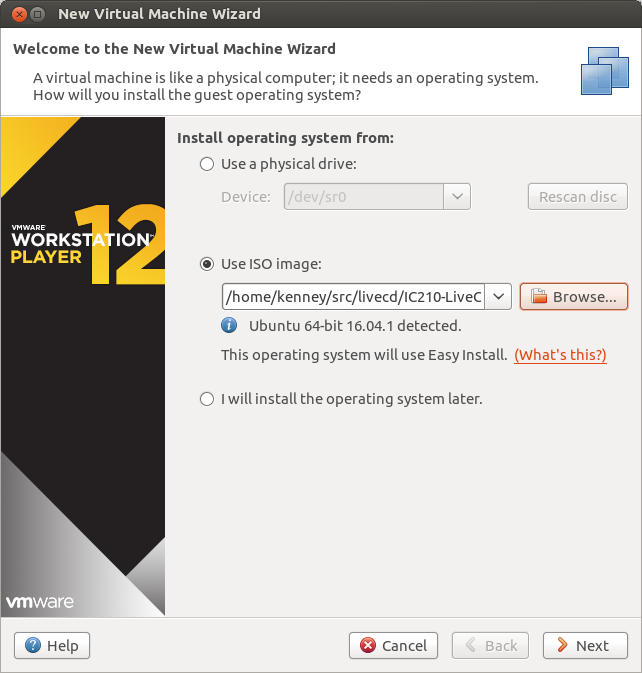
Click Browse and select the location of where you downloaded the course LiveCD, then click next
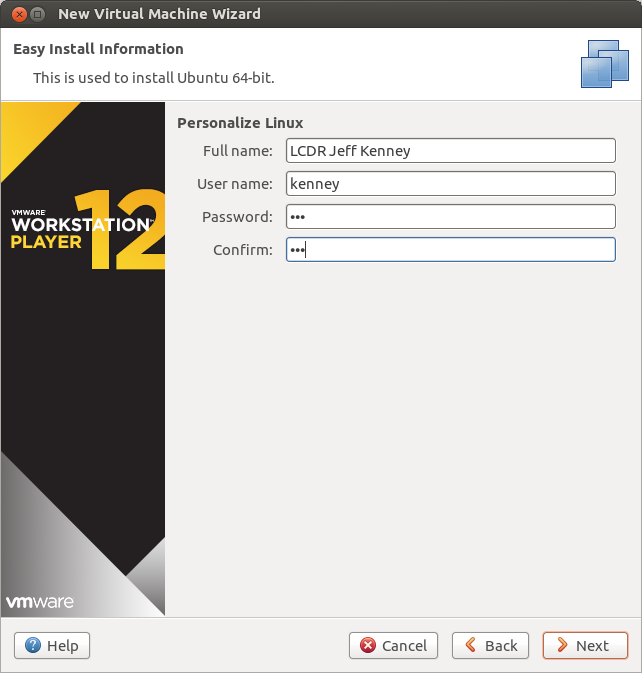
Enter your information, Please make sure that your username is your academy log-on, and use a simple non academy password.
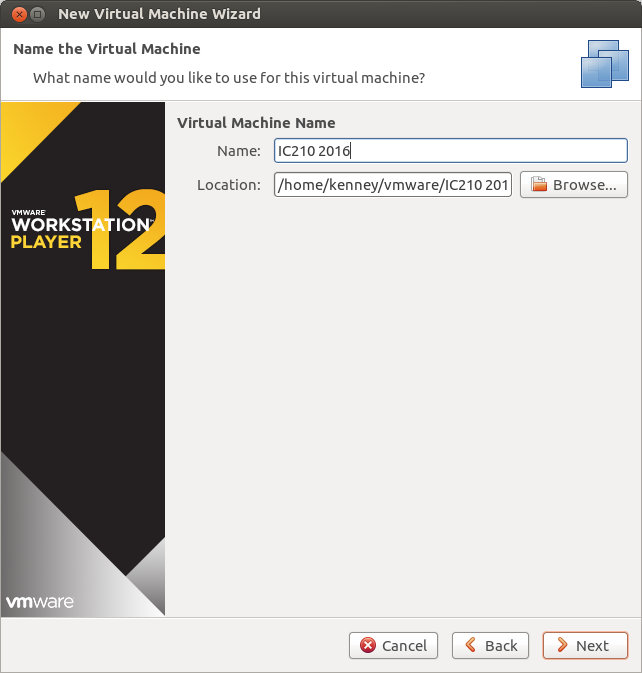
Name your VM
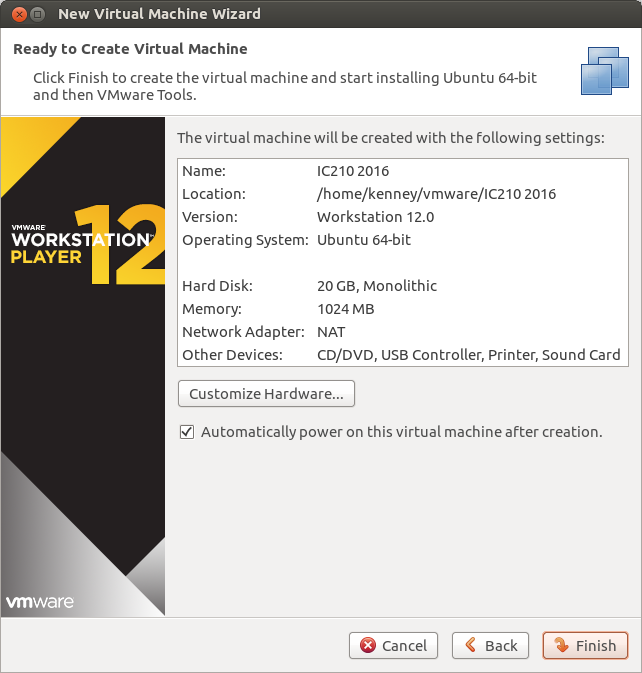
Click Customize Hardware
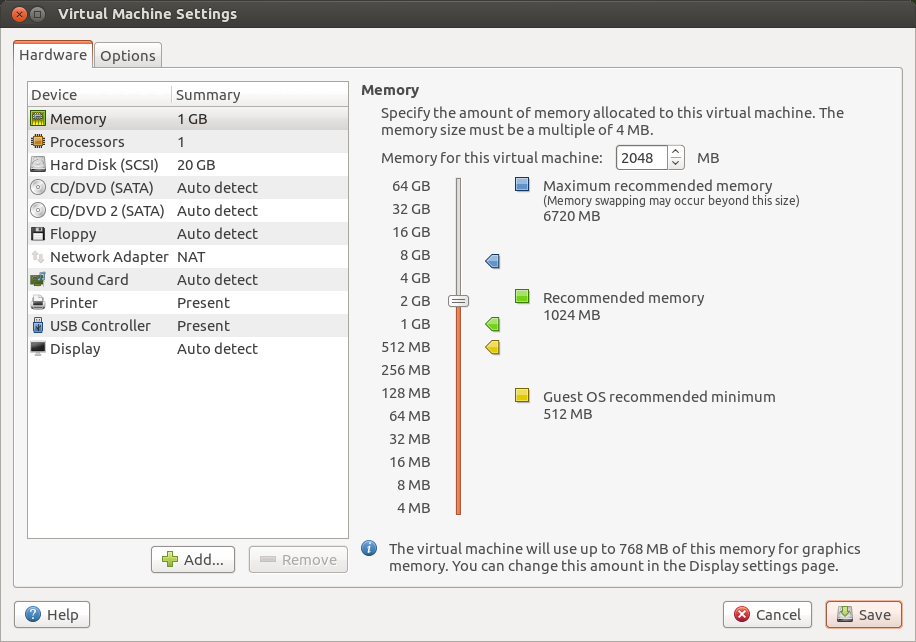
Update the memory to 2GB
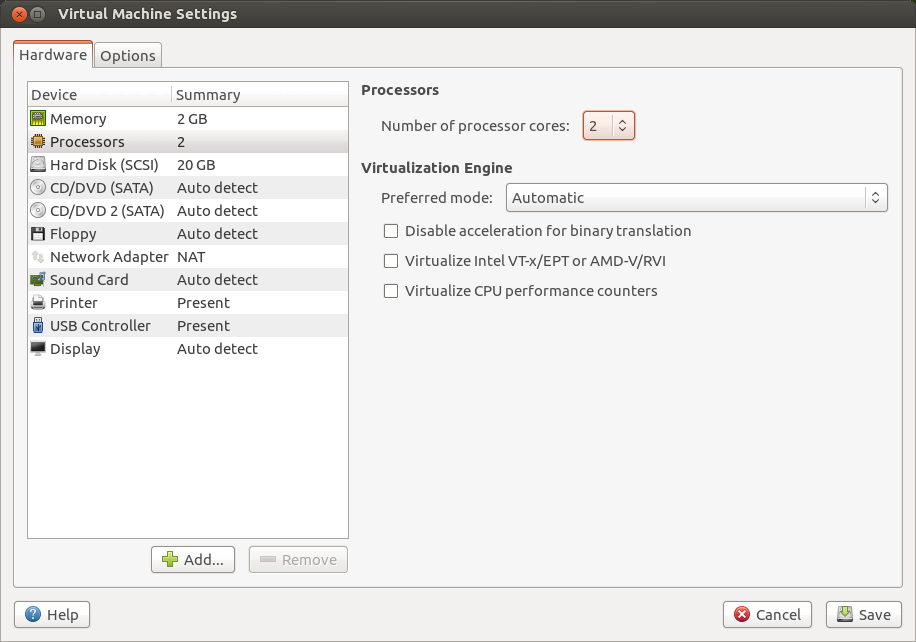
Make the number of cores 2
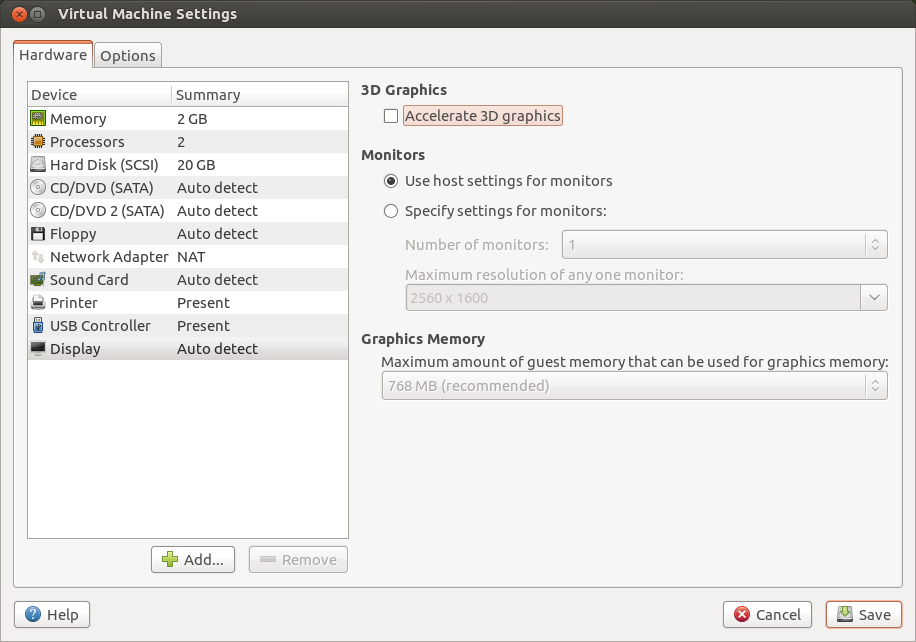
Turn off accelerate 3D graphics - you won't need this
Go back and click Finish
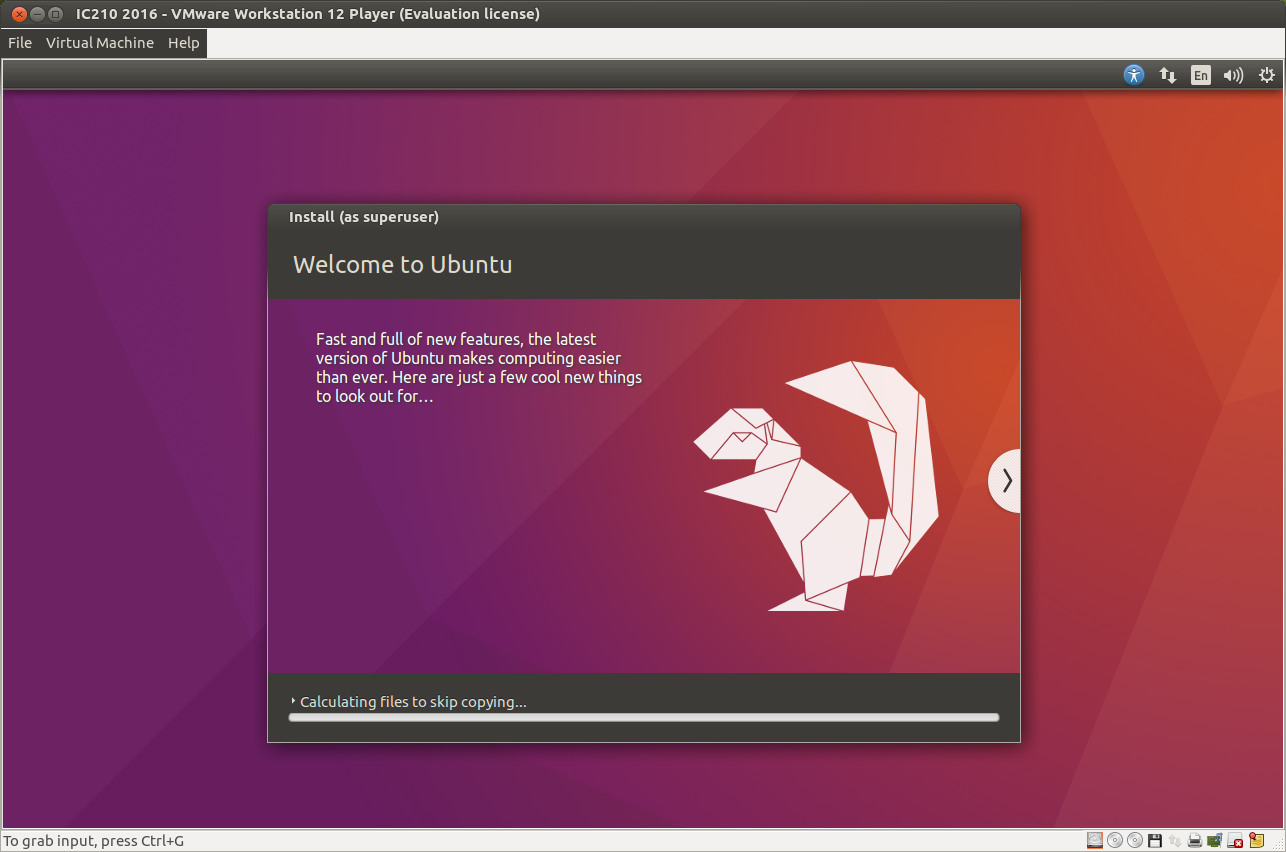
Let the installation continue
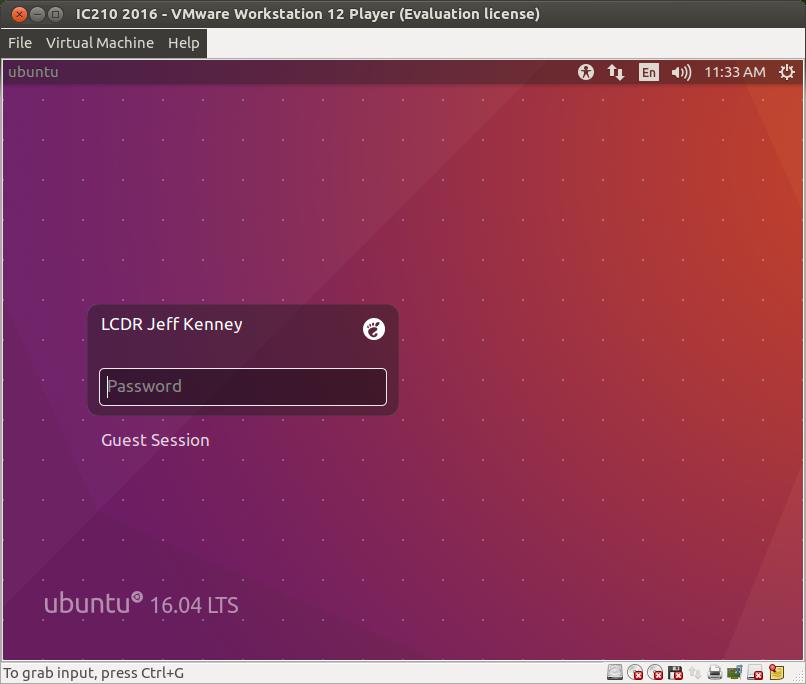
After a while it will reboot and you will end up at the log on screen!
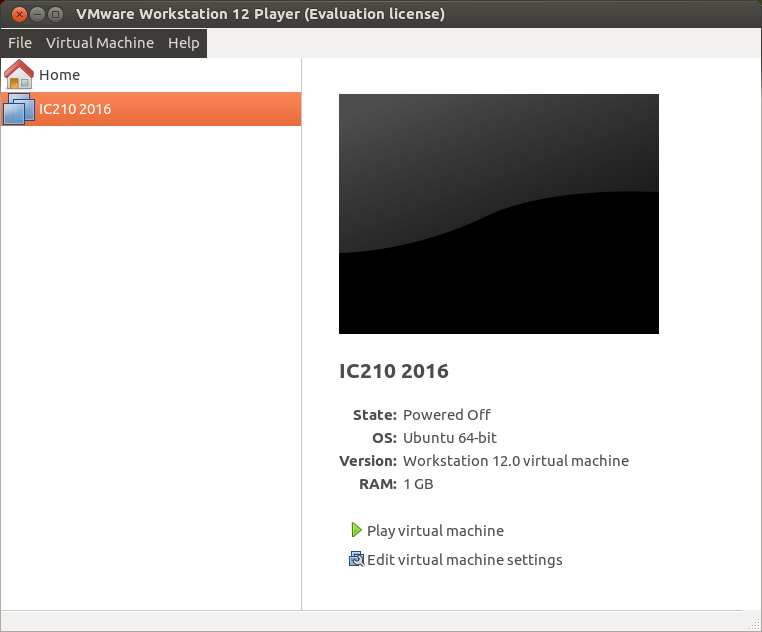
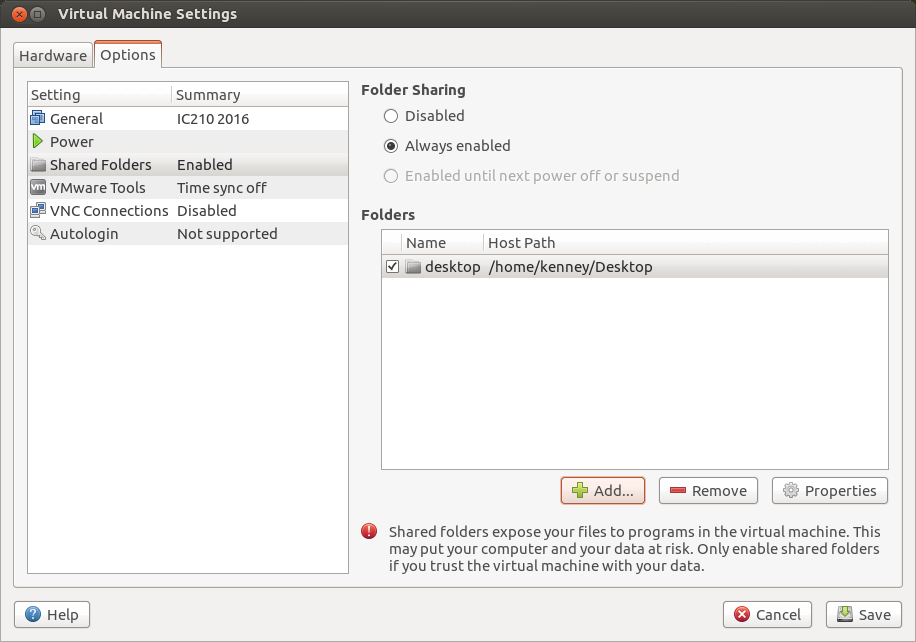
Turn on file sharing between the VM and your notebook
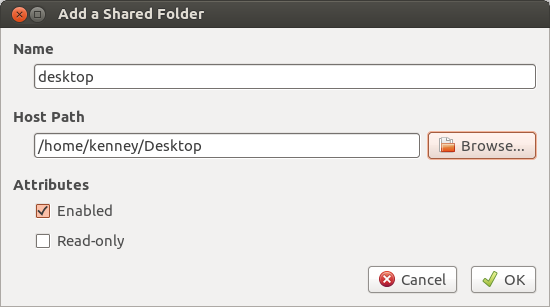
By selecting the paths you want to add (your desktop is a good idea!)
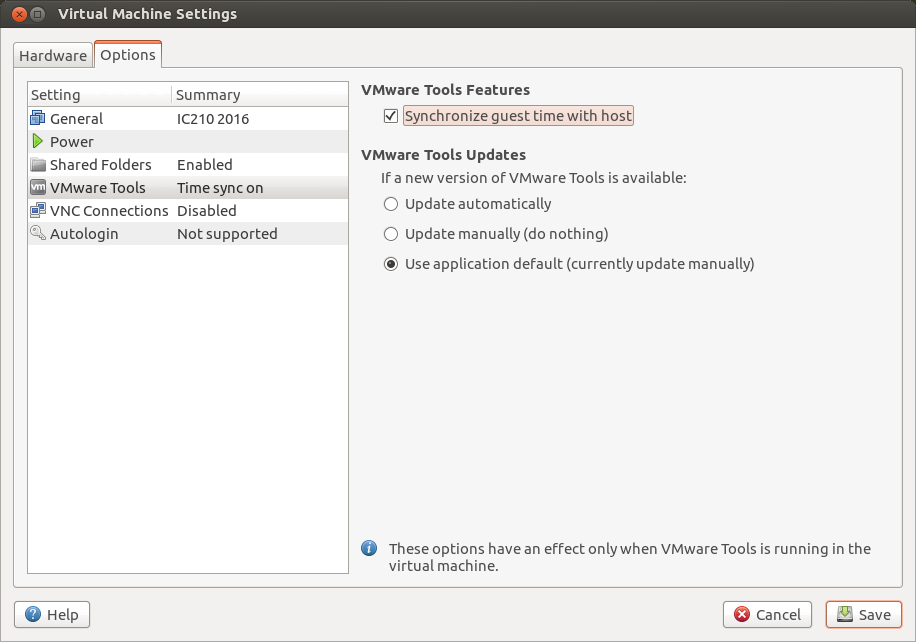
Synchronize time with the guest