Setup your laptop. Visit this page and follow the instructions.
The traditional first step when learning any programming language is to write a Hello World! program. There is even a webpage with every programming language's "Hello World" that you can think of. You've already written your first program for HW, but let's do it using your own Python interpreter and not something online.
Create a new file in Atom called "hello.py" and put one line in it:
print("Hello, World!")Before we move on, don't forget to document your code. It needs some comments that explain what the program does. You use the pound (#) symbol to start any line with free-form text that Python will skip over. These comments are there to describe your code to someone (and yourself) what the program does.
#
# My first program that prints Hello World!
# Your Name
#

print("Hello, World!")
Run it! Open Ubuntu if you haven't already. Run python3 and give it your file name as an argument:
$ python3 hello.py
Hello, World!
Add a couple more print statements to say other greetings. Have at least 3 or 4 and run it again.
Let's personalize your program. Create a variable at the top of your program that will store your program's friendly name:
name = "Barleyfoot"Have your program introduce itself now:
print("My name is " + name)As you recall, we can use the + operator to concatenate two strings together. When you use a variable, the program looks up the value stored there, and copies that value into your print statement.
Now ask the user for their name and save it to another variable. Add this to your Part 2 greetings in some way, and respond to the user with their own name. Your output should thus be some variant of the following interaction:
Hello, World!
Greetings kind citizens.
A good day to you!
My name is Barleyfoot.
What is your name? Nate
Hello there, Nate, are you enjoying the lab? sure ok
sure ok, you say? Well isn't that nice.
What color are your socks? red
The color red is my favorite too!
Requirements:
Required: make sure your program file is named hello.py
Find a classmate. Email your programs to each other. Run and try out your classmate's program.
Required: copy the full output of running their program into a file named classmate.txt
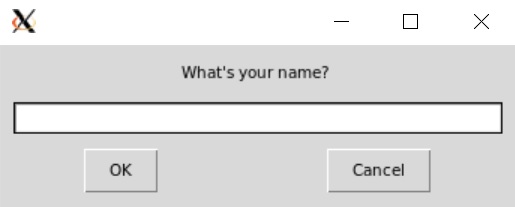
Now we'll illustrate your first use of a Python library that somebody out in the world created.
Copy your hello.py program to another file named hellogui.py
Let's change your program so the print and input statements instead pop up graphical boxes from a Graphical User Interface (GUI). People like GUIs because they're more friendly to use. There is GUI library called easygui with a msgbox() function. Change your first print("Hello World!") to instead be msgbox("Hello World!"). Try running it. Did you see an error like this?
Traceback (most recent call last): File "hellox.py", line 23, inmsgbox("Easygui got " + msg) NameError: name 'msgbox' is not defined
The problem is that your Python doesn't know about EasyGUI nor msgbox(). You've been using print("Hello") which is a standard Python function that Python makes available from the start, so when you write code referencing it, Python knows what you're talking about. We renamed it to instead be msgbox("Hello"), but you might as well have just typed in woopdeedoo("Hello") because Python thinks you're crazy. Your function calls need to be either from core Python, or you must tell Python where to find it.
Sometimes we'll create our own functions (later in the semester), but other times you'll use functions that other people created. That's what msgbox() is, so let's install the EasyGUI library on our computers and then tell Python to import it. How to install it? Run this from your terminal:
pip3 install easygui
NOTE: if you get an error message like this:
Command 'pip3' not found, but can be installed with:

sudo apt install python3-pip
That just means pip3 isn't on your computer yet. Run these commands first to install it:
sudo apt-get update
sudo apt install python3-pip python3-tk
Pip3 is a helper program that installs Python libraries for you. Give it the library name and it retrieves it from the Web. In the future, if you learn about a cool Python library, usually you just run "pip3 install X" and you're good! Ok, then how do you then use it in your program?
# Put this at the top of your code
from easygui import *
This tells Python to find all functions (the asterisk *) inside the library called 'easygui'. That one line makes everything available to you. So finally, try running your program again and you should see a GUI window pop up.
Assignment: use msgbox() for your print statements, and enterbox() for your inputs. Your program should then be fully GUI-ified. Read the easygui documentation if you run into trouble or want more functions!
Hello World is pretty basic. Let's make one more program from scratch. This one will do basic height/weight calculations. Create a new empty file called bmi.py
Below is the expected input/output (without GUIs, your choice to use it or not), so your task is to write a program that does the same. Black text is your program's output, and red is the user's input.
How many feet tall are you? 6
How many inches? 0
You are 2 inches off from the average man.
You are 8 inches off from the average woman.
How much do you weigh (in lbs)? 165
Your BMI is 22.375578703703702
And another run:
How many feet tall are you? 5
How many inches? 6
You are -4 inches off from the average man.
You are 2 inches off from the average woman.
How much do you weigh (in lbs)? 135
Your BMI is 21.787190082644628
You'll need these details to program it:
Let's end the lab with error tinkering.
When you make certain kinds of common mistakes (syntax errors), Python won't be able to understand your program and will issue error statements. Each error message includes a number, which represents the line number of the error. Go to that line number to see where the problem is. Every syntax error must be corrected before a program will compile. Sometimes it is clear what's wrong, and other times you may have a hard time figuring out how to correct a syntax error. You will improve as you see enough errors to associate the messages with the syntax error. Here are a few simple rules and hints:
Experience and practice help a lot here. So for each of the below, purposefully make the syntax error in your current program and try to compile to see what the error message is. Correct the error before introducing the next error into your program (e.g., only add ONE ERROR at a time). Go slowly and pay attention, this will save you time later!
Required: create the 6 errors above one at a time (then fix them again). Run your code each time, and copy/record the errors you see. Put these all in a file named errors.txt. Don't just empty-headed copy these. Read them so you'll learn what they mean!
Fun? Hooray!
Login to our submit system and click your name. Select "Upload Submission" and upload your 5 files:
hello.py hellogui.py bmi.py classmate.txt errors.txt