
Guide to Opening Adobe PDF Forms
While most PDF files can be opened in your web browser or the PDF viewer of your choice, some PDF files contain proprietary features that are only available in the Adobe PDF Reader application. If you see this error message, it indicates the PDF file contains content which can only be read by the Adobe Reader application.
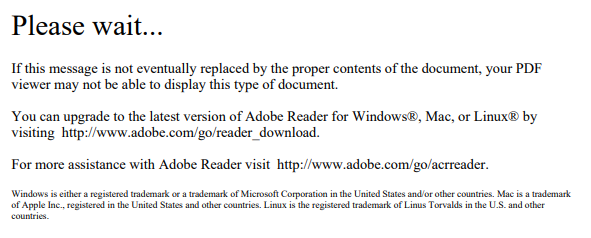
For USNA, this is most common with forms that contain digital signature blocks. This guide is written for people using non-USNA computer systems. If you are using a desktop or laptop computer owned by USNA, please contact the ITSC for assistance instead.
This guide is not an endorsement of any particular software, application or operating system, and is provided only to assist with USNA forms that display the above error. This guide is provided "as-is" and without warranties or guarantees of any kind, either express or implied, regarding the accuracy or completeness.
1. Download the File
If you haven't downloaded the file yet, you can download a PDF file from your web browser by opening it in a new tab so that you see the above error, and then clicking the icon that looks like a down arrow in the upper right corner:

2. Open the Adobe Reader Application
Windows:
Apple/Mac:
Open the Adobe Reader application on your computer: How to open applications on a Mac. Alternatively, if you have the Adobe Acrobat application, this also will work.
If you don't see it there, first install the application: How to install Adobe PDF Reader on a Non-USNA Computer
3. Open the File
With the Adobe Reader application opened, go to the File menu and then click Open.

Select the file you downloaded in step 1.
The file should load in the Adobe Reader application. However, you may see a yellow warning banner across the top of the file and continue to see the error message. If this happens, click the "Enable All Features" button to allow Adobe Reader to load the file. Only click "Enable All Features" if this PDF file came directly from USNA or a trusted source like another government agency.

You now should be able to view the PDF.
